Capture One Pro
Activation:
1) Click on the blue ''Activate Capture One'' button at www.captureone.com/de/redeem
2) Click on "Coupon code" in the checkout menu
3) Enter your coupon code
4) Click on "Proceed to checkout"
5) Download Capture One via www.captureone.com and activate it with your license key
6) Get creative with Capture One Pro!
NEW with Capture One Pro:
Faster selection
You can select your images even faster. Rate and tag images directly in the Importer or in the special Cull view if your images are already in Capture One Pro. With the automatic group view, you get an easier overview of similar images and can make your top selection even faster. You can also use Instant Browsing to click through your images without delay.
Smart Adjustments
Massively reduce editing time with Smart Adjustments Maintain a similar look in shots taken under different lighting conditions by automatically adjusting exposure and white balance - ideal for portraits, weddings and more
Layers in Styles
With the ability to include layers in styles, you have more control over editing and full flexibility over your style workflow. Apply your edits to multiple layers with a single style, so you can easily control opacity and be versatile. Save your own styles with layers in them or get versions of Capture One style packs with layers.
Change capture time
Keep your photos in order to make selection easier by changing the capture time. If you are shooting with two or more cameras that are not synchronized or the shooting time is set to the wrong time zone, you can easily adjust the time on each image so that they appear chronologically. Selection is made easier when you see all the images from certain moments or similar shots in the right order.
Album variants
Simply sort the image variants into separate albums and organize your photos more efficiently.
--------------------------------------------------------------------------------------------------------------
IMAGE EDITING
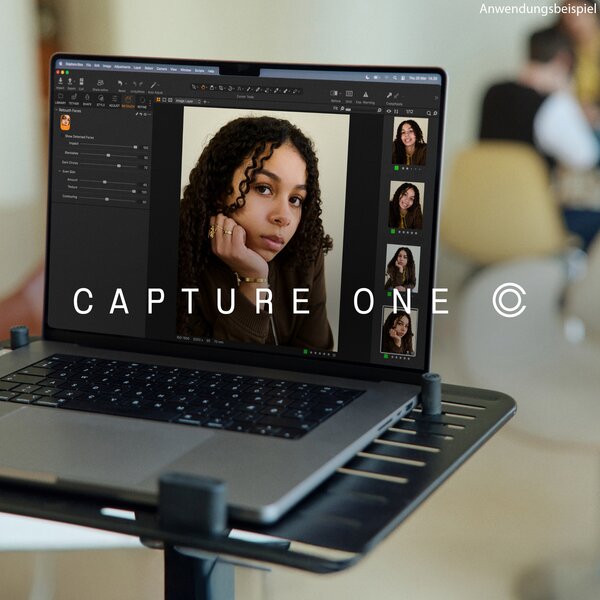
Capture One is designed with image quality and ease of use in mind. Each tool gives you complete control over all aspects of the editing process - preserving, restoring and optimizing all the information from your RAW files. The wide range of tools offers comprehensive options to achieve perfect results every time.
Exposure, contrast and saturation
Perform basic image editing with intelligently designed tools. Contrast adjustments protect saturation and color transitions, brightness adjustments protect highlights and saturation protects colors from burning out.
High Dynamic Range
Take complete control of contrast and hue with the High Dynamic Range tool. Restore highlights, enhance shadows, darken blacks or boost the brightest parts of your image - all in just one tool.
Curves and tonal values
In addition to the standard tonal value tool, the RGB curve and the individual channel curves (red, green and blue), Capture One has a luma curve that can be used to effectively control brightness without affecting hue and saturation.
Clarity + Structure
The Clarity and Structure options allow you to enhance the impact of your image while preserving shadow and highlight detail. There are four Clarity methods available for different application scenarios. Use Structure to add definition to fine details.
Film curves
The curve under Basic Features describes the basic tone mapping of all pixels, which effectively manages the initial appearance of your RAW file. In addition to the standard curve, other curves are also available that provide additional options for controlling your image.
Styles and presets
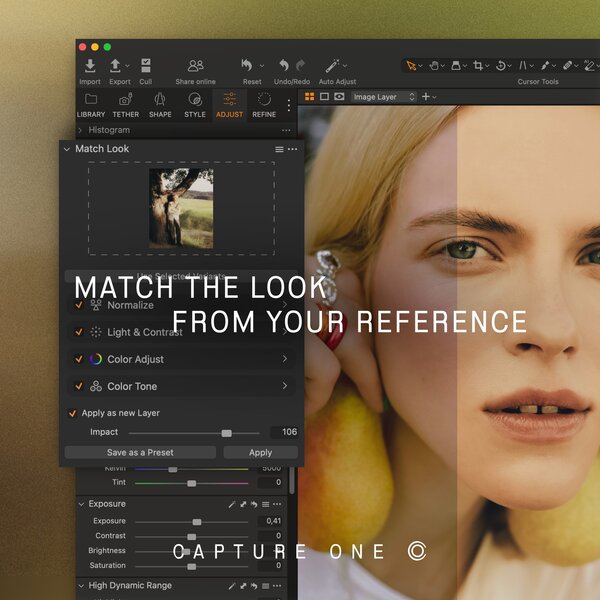
Apply your favorite visual styles to your images. A ready-made set of visual adjustments can be made with just a few clicks using styles and presets. Choose from the built-in style packs, create your own or install third-party style packs. You can also select one of the many additional Capture One style packs.
LEVELS
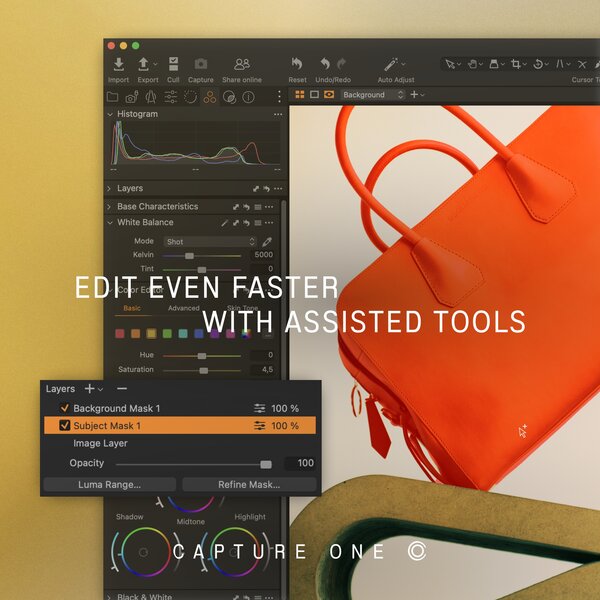
For precise local customization, most of the tools in Capture One Pro can be applied to layers, enhancing the control of each image. Apply up to 16 layers and use different brush options for precise masking. Control the effect of your local adjustments by changing the opacity of each layer.
Radial gradient mask
Radial masks make it easy to quickly shape round masks with smooth edges. Use them for custom vignettes to apply creative effects or improve focus.
Linear gradient mask
Get more editing precision with radial gradient masks. Adjust the size, shape and symmetry of the masks with just a few clicks and keystrokes and use them to create smooth gradients on layers and smooth transitions into the sky - and much more.
Luminosity masks
Create masks like never before. Luminance masks allow you to limit any adjustment to a selected brightness spectrum. For example, you can use them to focus your shadow restoration on only the darkest shadows or add clarity to only the brightest parts of an image.
Repair and clone
Want to remove unwanted elements from your images? Repair or clone an area of your image by adding a new layer with layers. While a repair layer blends into the surroundings of the target area, the specific source area is cloned into the target area using a clone layer.
Feather Mask + Refine Mask
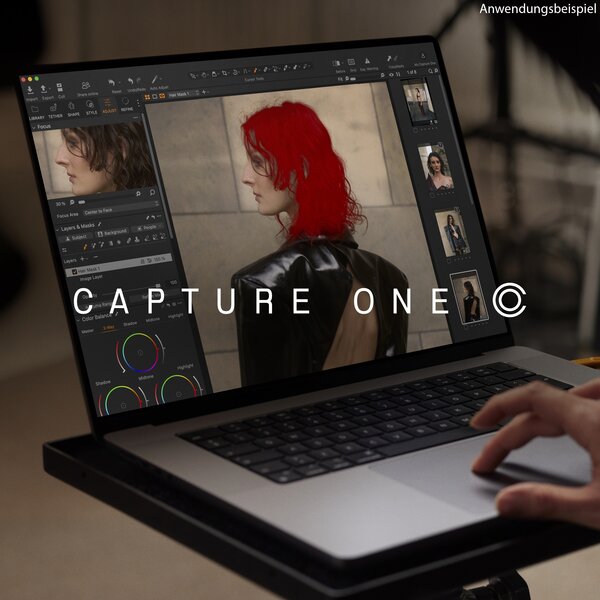
Blurring the mask edges after drawing is simplified with the "Feather Mask" function. Avoid redrawing masks by simply dragging a slider to soften the edges of the mask. Use the "Refine Edge" option to create a more precise mask edge. Create a clean and customizable mask for many purposes, such as picking out hair against a background. Use this option with the improved Auto Mask function to achieve precise results.
Grey Scale Mask
Visualize your mask without the distraction of the image by switching to Grey Scale. Now you can easily capture and correct omitted areas of your mask.
ORGANIZE YOUR IMAGES
Asset management is critical for any photographer, whether it's managing images from isolated day-to-day jobs or large image collections with thousands of images. Capture One offers tools and solutions for every photographer and ensures simple, fast and effective asset management.
Catalogs and sessions
Whether you want to manage small day-to-day jobs, large image collections or need a stand-alone image editing tool, Capture One features a solid workflow that is tailored to your working style. The sessions are designed for most everyday jobs and the catalogs for large image collections. You can even use Capture One as your standalone image editing tool of choice.
Process Recipes
Speed up your output process. Export multiple formats and sizes at once with Process Recipes. So you can prepare your images for web, Instagram or print - all in one export. Export options include ignore crop, sharpen for output, remove metadata, add watermarks - and much more.
Select, rate, sort
Sort images efficiently with tools for rating, tagging colors and organizing images in your session or catalog. You can also enable the "move to next" option to automatically move to the next photo when rating or tagging - a huge time saver when sorting large projects.
Filters and Smart Albums
Filter your images globally or save your filters as a smart album with a variety of criteria to maximize your efficiency. It's never been easier to find any 5-star rated and color-coded portrait-oriented image taken with a 50mm Lens in your collection.
Tags and tag lists
Add and remove tags to multiple images with simple clicks. Create multiple keyword libraries to manage different lists effortlessly and make keywording an integral part of your asset management workflow.
PSD Roundtrip support
Capture One supports reading multi-layer PSD files, so you can perfectly roundtrip with Photoshop and control your image editing workflow.
Migrate to Capture One
Capture One allows you to import other third-party application catalogs to make migration easier than ever. Folder structures and most adjustments to your images are retained.
WORKFLOW AND PERFORMANCE
From custom tools and shortcuts to graphics acceleration and wired instant capture, Capture One is designed to give you minimum workload and maximum efficiency. Create your own workspace and find your working style in Capture One.
Wired capture
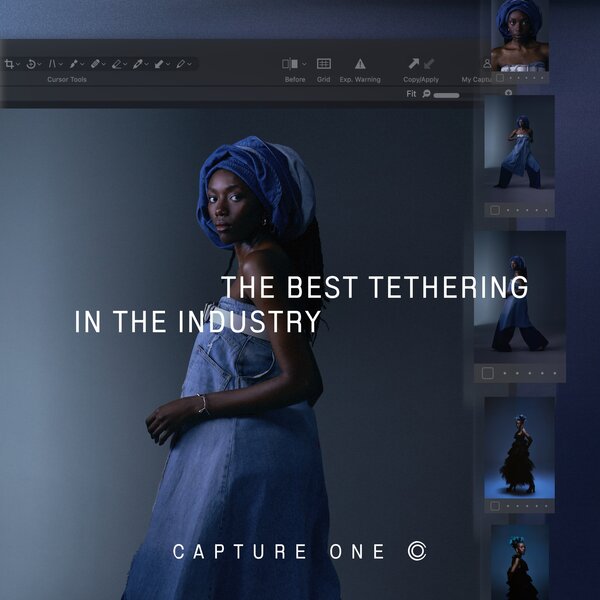
Capture One's industry-leading wired capture is fast, flexible and reliable, making it essential for photography sessions where speed and accuracy are key. Capture directly to your computer for near-instant viewing, with or without instant adjustments. Activate Live View for easier composition when shooting still life.
Workspaces
Customize your workspace to fit your workflow: Tools, viewers, thumbnails and icons can be hidden, moved and resized to help you work as efficiently as possible. In addition, the user interface is designed to make all tools as easily accessible as possible: Pin your favorite tools to the top to access them at any time, and scroll through the tools below.
Tokens
Text fields for naming, destination and other input such as watermarks offer the option of using "tokens". Instead of static, manually written text, tokens are dynamic and change depending on the information they have been assigned to. For example, the "ISO token" uses the ISO value of each individual image as input. So you can instantly create folders, rename your images or add watermarks to them with dynamic information that automatically changes to match each image, dramatically increasing the efficiency of your workflows.
Keyboardshortcuts
Edit and organize faster thanks to a comprehensive library of keyboard shortcuts. You can also further customize the shortcuts to create your ideal workflow.
Annotate
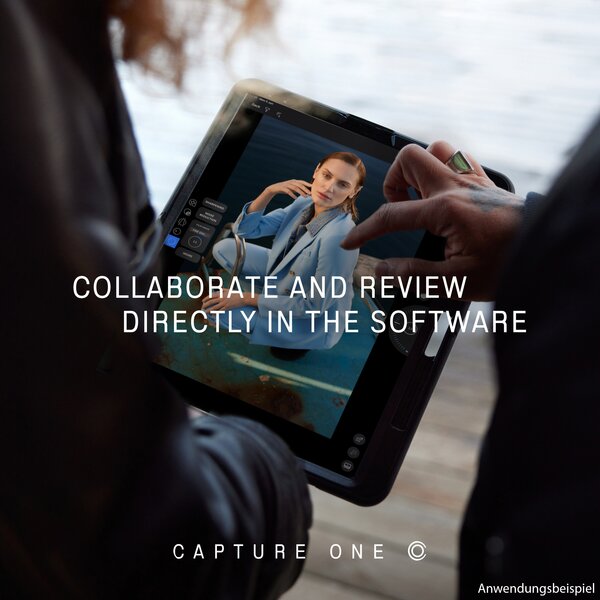
Annotate your images with the annotation feature by adding handwritten comments and drawings directly to your images. Use this feature to record your thoughts as you shoot, share notes with your editor or simply jot down a reminder.
Include the annotations in your exported PSD file as a separate layer for optimal flexibility.
Copy adjustments
Save time in batch processing by copying adjustments from one image to another. Copy all adjustments, adjustments from a single tool or specific tools from the adjustment clipboard.
Graphics acceleration
Graphics acceleration (OpenCL) harnesses the power of your graphics card (GPU) and provides an optimal editing experience and increased image processing performance. Accelerate your workflow from start to finish.
COLOR CONTROL
Capture One is known for its exceptional color editing. Thanks to our custom camera profiling, you get the best out of every RAW file - straight from the camera. Whether you're looking for creative color correction tools or want to make sure the colors in your images are as natural as possible: Capture One offers you powerful and precise tools to help you realize your vision.
Basic Color Editor
Edit colors in no time with the compact and intuitive Basic Color Editor. Simply click anywhere on the photo and drag to adjust the shading, saturation and brightness of any color - or adjust colors with intuitive sliders.
Advancedcolor editor
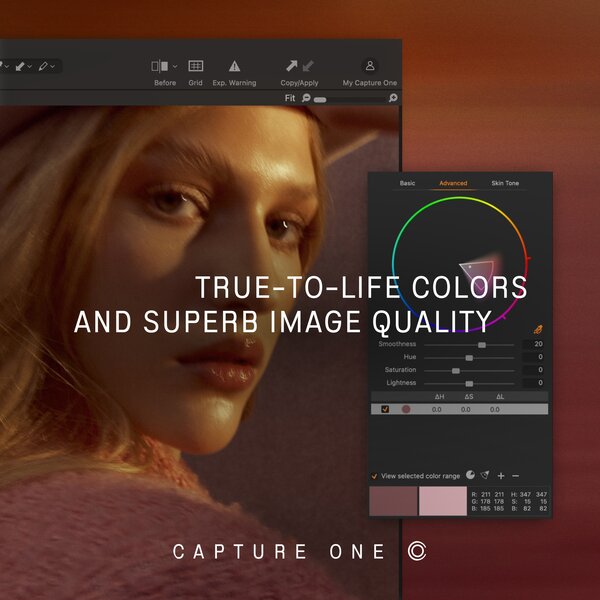
Take complete control over your colors with the advanced color editor Advanced. Define color spectrums to adjust hue, saturation and brightness with unprecedented precision.
Straight from the camera
Custom color profiles for all major camera models ensure unprecedented color accuracy straight from the camera, providing the ultimate foundation for further adjustments with any RAW file.
Color balance tool
The intuitive color balance tool ensures precise and effortless color correction and gives you the ability to customize shading and brightness for shadows, mid-tones and highlights.
Skin tone editing
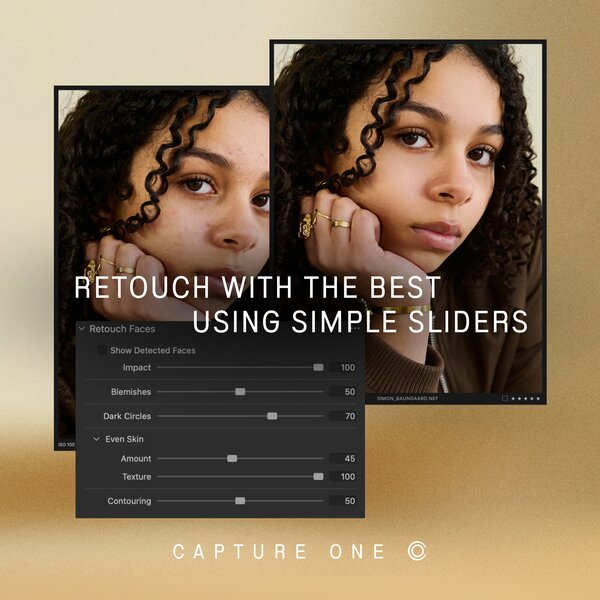
Smooth skin tones without complicated color retouching thanks to three evenness controls; shading, saturation and lightness. Apply them as local adjustments for maximum control.
Black & White
The Black & White tool in Capture One gives you complete creative control over the conversion process while minimizing the amount of noise introduced for a silky smooth result.
DETAILS AND LENS PROFILES
With image quality as the driving factor, Capture One is designed to maximize the output of every RAW file and achieve the highest level of detail. Each supported Lens has a custom-built Lens Profile that provides precise tools to minimize distortion and light fall-off.
Sharpening
Extensive sharpening tools allow complete control of the process with control over everything from volume to halo suppression. Adding additional usage-dependent sharpening to your process recipes, such as screen or print outputs, ensures that your images always look their best, regardless of size.
Noise reduction
Capture One's powerful noise reduction is both camera model and ISO dependent, giving you a sharp result every time. Preserve color and detail like never before when shooting at high ISO settings and start your editing with higher quality images - before you even start making adjustments.
Output Proofing
Editing images for large print is very different from editing images for social media use. Capture One allows for independent process recipes, where you can save different setups to achieve the desired output with just one click. Each process recipe can have a different image size, quality, ICC profile and sharpening - and these are just some of the settings that you can customize. Output Proofing allows you to quickly view the final image of each recipe without having to process your image first. This makes it a breeze to optimize any recipe to perfection without tedious trial and error.
Simulated film grain
Simulate an analog look by adding film grain to your images; you have six grain types to choose from. Change the effect and granularity for maximum control over the final look.
Moiré
Handling difficult patterns that result in moiré is simple and straightforward. Apply as a local adjustment for maximum control.
Lens Corrections
Correct distortion, chromatic aberration, and light and sharpness degradation using Capture One's extensive lens profile library or directly from the manufacturer's profile.
Keystone
Use Keystone to straighten vertical or horizontal lines - or both. The on-screen Keystone tool makes this process a breeze.