Camera Basics #17: Colorgrading with LUTs - 3D Luts
Almost nothing is as controversial as the use of colors, the choice of the right colors is an essential factor for the mood and feel of an image. Purists swear by the colors that come directly out of the camera and others edit the colors in post-processing down to the smallest detail. But we'll explain what LUTs are all about, how they work and why it's so exciting that some of them can be used in-camera.
We are looking forward to your feedback to this article! Just send us an email to content@fotokoch.de
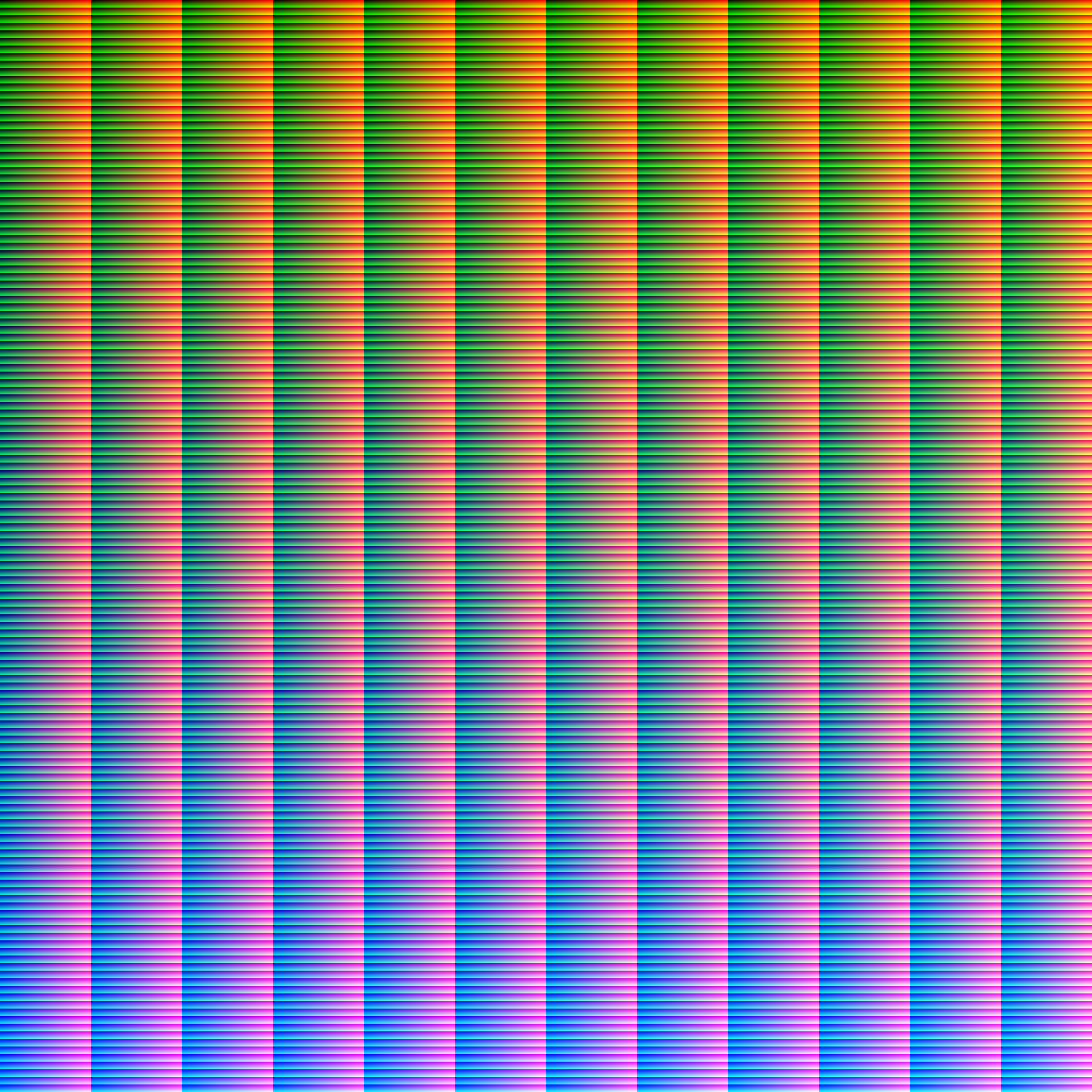
 A neutral HALD graphic with 144 fields
What does LUT actually mean?
A LUT stands for the abbreviation: Look-up-table, which are often handled as an output profile and are usually quite large with over 1 MB, because they contain direct values from a table, which has a fixed assignment, for which the so-called processing color space is used, which is defined with XYZ or L*a*b. The experts will surely recognize it, because there is also the color space LAB. With LUTs it is possible to make very complex conversions and to adapt the colors even for demanding 10-color printers.
LUT profiles are very complex and the simple explanation is that it is just a referencing table that defines the colors. It is also based on brightness.
What makes LUTs so special compared to HSL controllers?
You surely know the HSL sliders (Hue, Saturation and Luminance) in Lightroom, a 3D LUT can do this too, but in contrast to the colors / tones prescribed in Lightroom or RAW developer of your choice much deeper and more precise. And lets you control color, saturation and brightness in the process. If your camera is capable of saving the images with the Simulated LUT, then already in-camera you can, for example, increase the brightness / luminance of blue in the sky to create a more dramatic sky as you might otherwise have done with a polarizing filter.
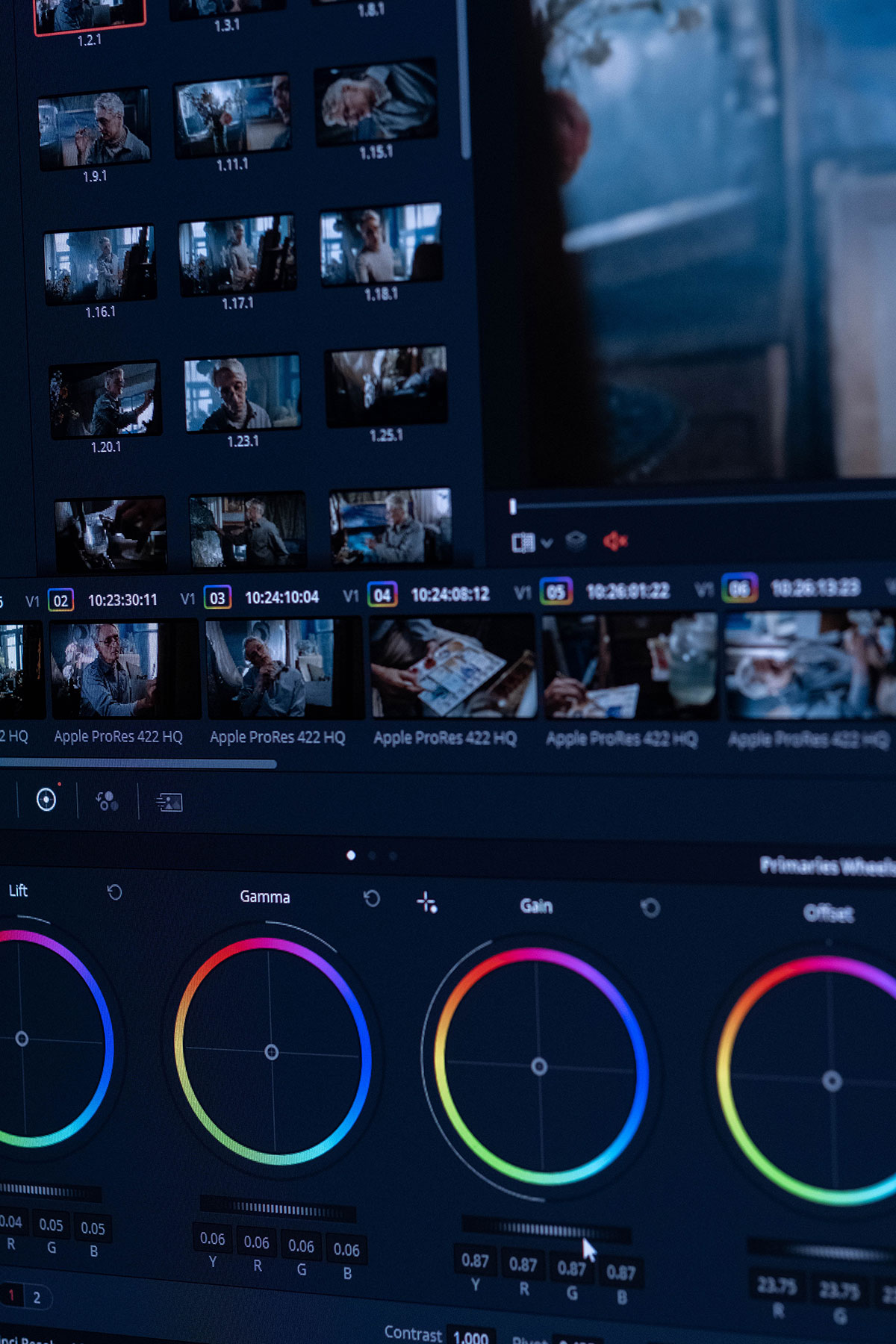
How to use LUTs?
LUTs work best on a flat, rather grayish image, which is not too underexposed or overexposed, because here all color information is still present. Perhaps the color profiles / codecs from the video area might also mean something to some of you: Vlog or Flat. These are particularly well suited for color grading (color corrections), but the extent to which this is possible in the end depends not least on the available number of bits. With Panasonic, many models such as the Lumix DC-S5 II allow these LUTs to be applied not only to the video footage internally & live, but also to the photos.
So if you want to use the LUTs in camera, you should use the Flat profile and then select your LUTs on the Panasonic camera. This is because the LUTs are overlaid on the image after JPEG creation, and an image in the Flat color profile retains the most information and is easier to color grade.
You can't properly apply LUTs in Lightroom as of September 2023. They would first have to be converted in Photoshop for Lightroom, so that you can use them as profiles, but we do not recommend this, as it is more of a pure workaround.
What are the advantages?
Using LUTs in the camera does not require as much processing power as other processes in your camera. The big advantage is that you already get finished images in the camera that don't need any post-processing. With Panasonic, you can also intervene in the LUT at any point and adjust the colors. If you use LUTs for portraits, you should also make sure that the skin tones remain relatively normal or close to reality in the best case; occasionally, of course, you can break this rule under the artistic aspect. If you work with JPEG and RAW, you can already save your wedding look as Jpg in parallel with Panasonic, which offers a huge potential for saving time and delivering images quickly.
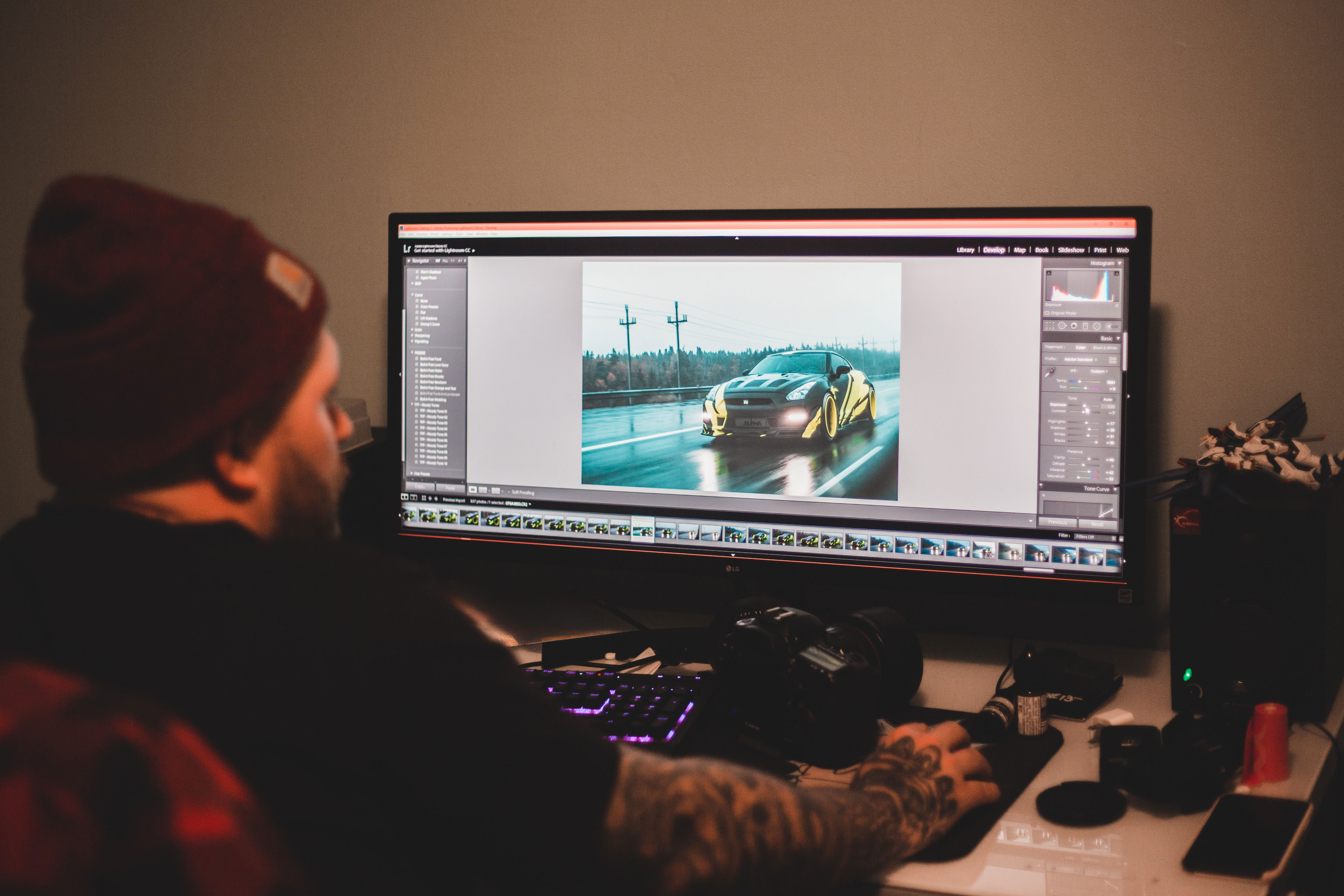 Develop color looks with Lightroom
Create your own LUTs
You can easily create your own LUTs with Photoshop using a reference table, which can then be converted to a LUT using a converter. For this you take a HALD graphic, which has a size of 25, 64, 144 or 256.
Make sure you name the LUT well so you can perfect it better in the camera.
Which LUT formats are there?
We will only list the formats here, for the use on the camera or your video monitor you might have to check your user manual again.
Frequently supported LUT formats:
- .CUBE
- .vlt
Create LUTs in Lightroom
You import the HALD graphic into Lightroom and apply the settings of the image you graded to the graphic and then once you have applied them you can export the graphic and throw it into the converter, after that you have the finished LUT which you can import into the camera or video editing program and get started.
Creating LUTs in Photoshop
The process isn't much different, essentially you develop your photo and take all the steps to the HALD graphic where you made adjustments to the brightness and colors.

Are LUTs comparable presets on the camera?
If your camera can't handle LUTs, then it doesn't matter, in case of doubt you could always apply them on the PC, using Photoshop. Still, with e.g. a Fujifilm camera you can use the film simulation to save a look over the sensor directly to the images.
Using LUTs in Photoshop
If you want to use color grading via LUTs in the popular image editing software Adobe Photoshop, you can do so quickly and easily by clicking in the Corrections box and then clicking the Color Lookup box. Here it is important to know that at the beginning only the standard LUTs are stored here. You can easily add them by clicking on Load 3DLut, alternatively you can store them under your installation path in Presets. Don't be surprised, as soon as Photoshop adds its new annual version in the CC subscription, this is usually not copied, but then you can move the LUTs in the old folder to the new directory of Adobe Photoshop and you can use them again as usual.
Better results with LUTs in Photoshop
As we said before, it makes sense to start editing with an image that is as gray and desaturated / flat as possible, because many LUTs were designed precisely to then bring them back to life accordingly.
Conclusion
A LUT brings individuality to your images, but it should also be clear to you that every LUT does not behave or apply to every camera in the same way. Every manufacturer uses different sensors, which results in different results, so your 3D-LUT should be well coordinated with your camera. So a Look Up Table can not only save you time, but also pave a new way to get creative colors with your shots.

A small task for you:
Try to apply a LUT in your editing program and see how it changes your image, also use different image profiles. Make sure that your image contains as many different colors as possible, because then you can see the most changes of the LUT.
Show us your pictures on Instagram and/or Facebook and tag us @fotokochde! We look forward to seeing your results!
Thanks for reading this article. If you're interested in more photography basics, then check out the other camera basics
Get to know your camera ? Discover the fun of photography
You bought a camera and are taking your first steps in photography? With the automatic mode you miss a lot of potential! Photography is only really fun when you understand your camera and know exactly which settings you need to set to get the photo you want. Learn the importance of the functions and ignite your enthusiasm for photography!
Go to all camera basics